Setup
Download & Install
Use the latest release package from GitHub Releases.
Install Steps
- Download the latest release from Downloads.
- Extract the package into a folder you control.
- Run
NekoBot_LLM.exe. - Use the tray icon to open Setup Home.
StepWhat to check
GitHub ReleasesUse the newest GitHub release package. The public site intentionally points users to GitHub releases instead of hosting separate release builds.Extract packageUse a normal folder you control, not a temporary zip preview. This lets NekoBot create local settings, model cache, overlay data, and logs beside its runtime data path.NekoBot_LLM.exeStarts the desktop/tray process and local setup server. If Windows blocks first launch, allow the app only when the package came from the expected release.Tray iconOpens the local Setup Home after launch. If the browser does not open automatically, use the tray menu to open setup manually.First Run
NekoBot creates its local data and settings files when it starts. A fresh install should not require pre-existing overlay or TTS configuration files.
After first launch, continue to Quick Setup. That path connects a platform, creates one OBS overlay, and adds the first boxes inside it.
Setup Home
After launch, open Setup Home from the tray. This page is the public entry point for every setup area.
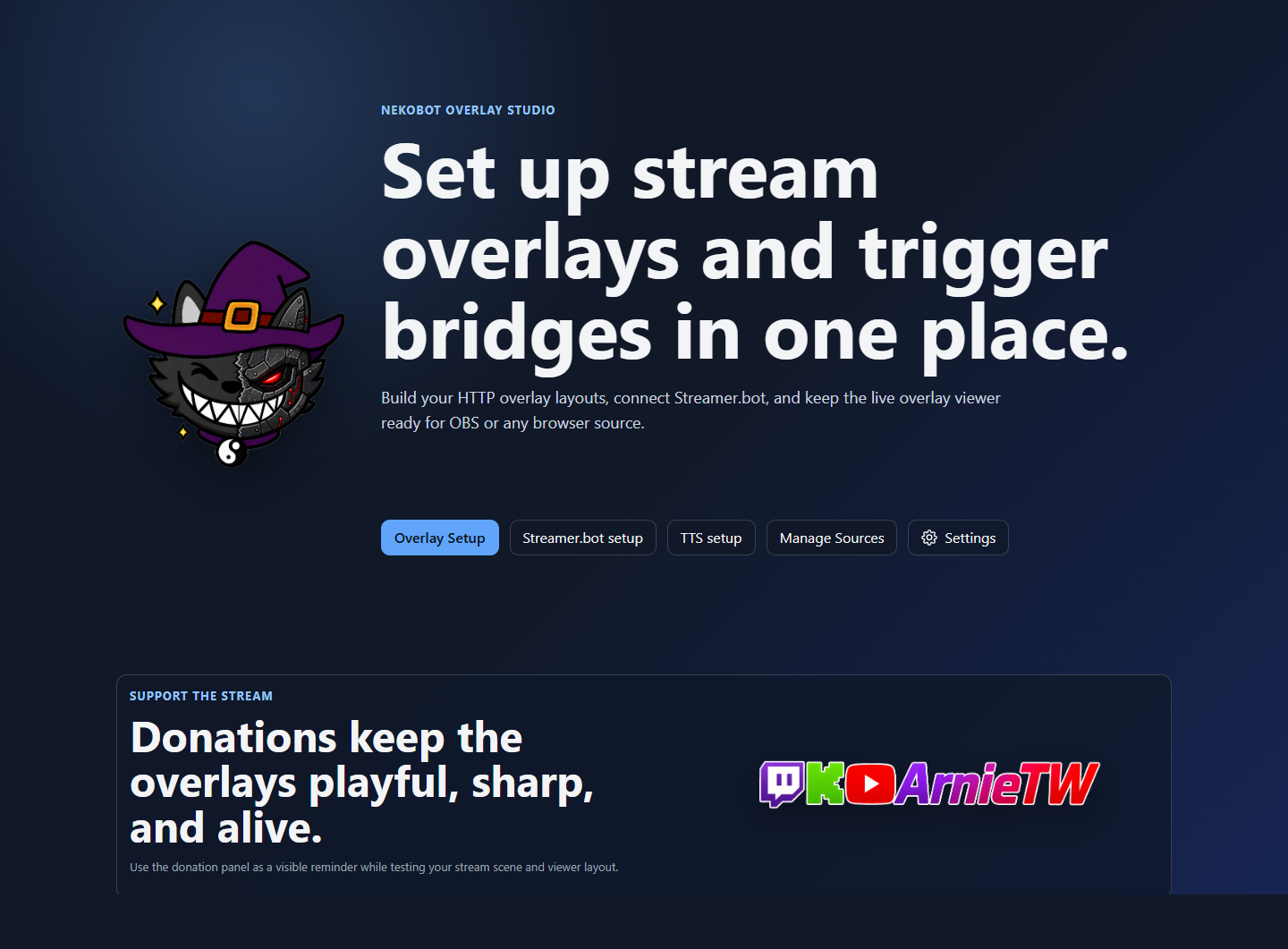
EntryUse it for
Overlay SetupCreate and edit the full-scene OBS overlay, boxes, sources, and trigger bindings.ConnectorsCreate and monitor Streamer.bot, Twitch, and Kick connector instances. See Connectors.Command TriggersBuild NekoBot-owned triggers, action flows, cooldowns, and channel reward handling. See Command Triggers.Channel RewardsCreate shared rewards and map them to Twitch or Kick connector instances. See Channel Rewards.ChatWatch connector chat events while testing commands and overlay reactions. See Chat.Streamer.bot ConnectorConnect NekoBot to Streamer.bot, subscribe to event groups, and inspect bound triggers.CosyVoice TTSDownload, enable, test, and configure local voice models for TTS sources.Manage SourcesReview reusable source assets and cached source data when media or source references need checking. See Manage Sources.SettingsInspect app settings, update checks, and logs. See Settings.